Request, quotes, offers, booking, services, documents and invoices on the same order, shared with your overseas partner when you choose.
Multi-mode offers · precise service handling · one order
Every shipping mode offered. Every service handled on time.
Offer Ocean FCL, LCL, Air and Rail side by side, each priced from your own rate templates, so the client chooses from a complete offer within minutes. Once booked, every truck stop, customs entry, warehouse handling and carrier check runs on your timing rules: late steps come first, and the client hears from you before they ask.
One order in Logistics ERP, instead of the details scattered over e-mails, rate sheets and calendars. Accurate for your team, on time for your client.
Ocean FCL, Ocean LCL and Air, every carrier priced from your rate templates
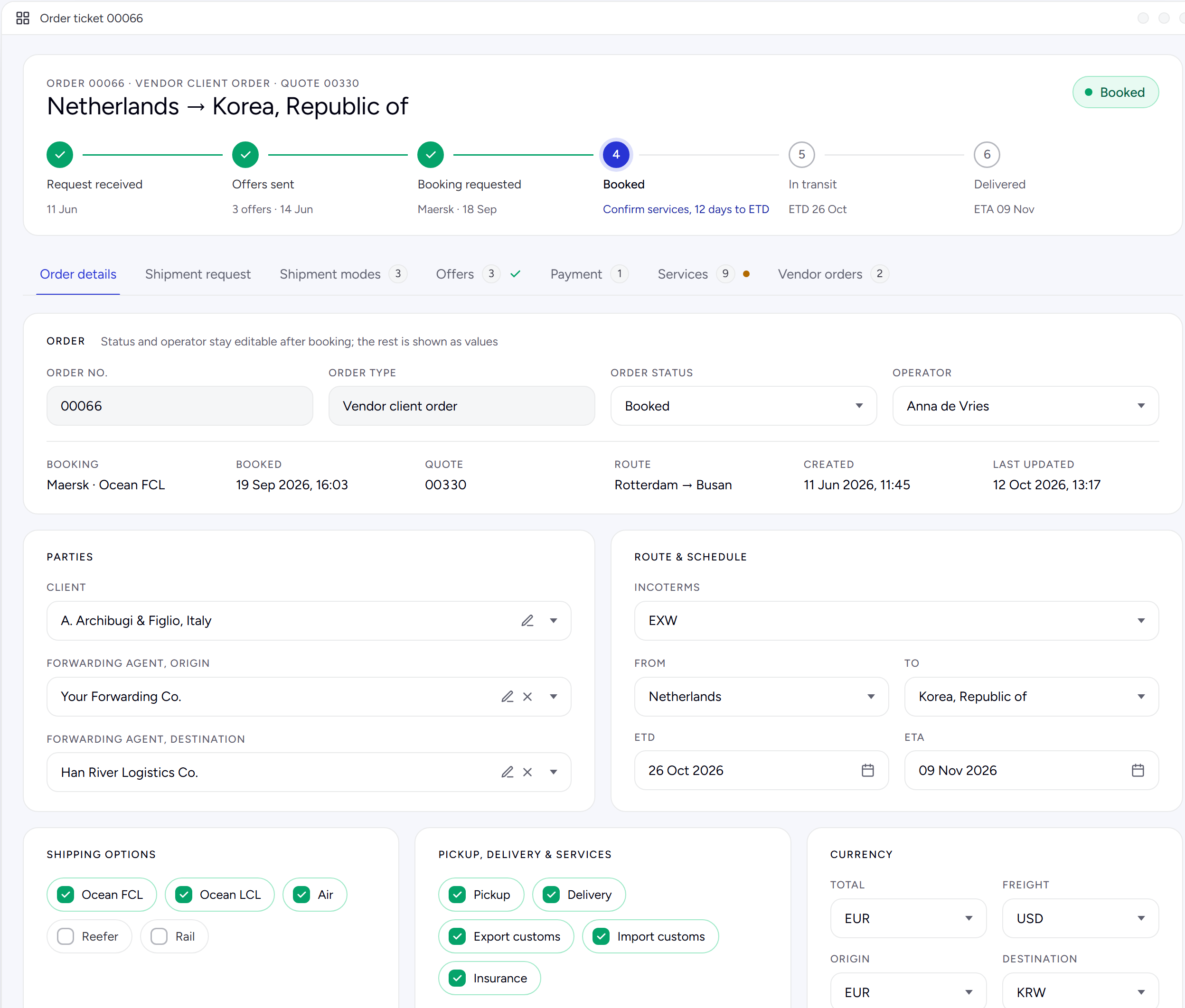
Export entry due departure − 12 h, flagged first
Every handling dated from the booked sailing. The client's status update goes out from your mailbox.
The flow
Five steps on one record. Nothing is typed twice.
Most forwarders run a job across a mailbox, a rate sheet, a quote file, an operations list and the accounting package. Each hand-over is retyped, and each retype is a chance to lose a container or a charge. Here every step reads what the step before it wrote.
01Shipment request
Read the request
Cargo, containers, pickup and delivery from the client's e-mail or PDF, and a checklist of what is still missing.
The AI agent reads it for you02Shipment modes
Add the shipping modes
Ocean FCL, LCL, Air or Rail, each from one of your rate templates, with every carrier and service on the lane.
One template, every carrier priced03Offers
Offer and book
Every carrier of every mode side by side with price, profit and transit time. Send the report, book the choice.
Booked in one click04Services
Run the services
Truck, terminal, customs, warehouse, freight and insurance, each handling with a planned date from your timing rules, and the bills of lading. Late steps come first.
The AI agent answers the client's service questions05Payment
Invoice and get paid
The booked charges become invoices, in as many parts as you need. The balance shows what is still to invoice.
Nothing left uninvoicedCreate booking turns the accepted offer into its carrier, truck, customs, warehouse and insurance services, with the prices of the offer.
Handlings with their own anchor and offset, from container pickup to arrival notice. Ocean LCL and Air have their own set.
Open, Debit, Credit, Draft, Posted and Paid show at a glance what is still to invoice or to credit on the order.
Your team works the shipment, not the spreadsheet around it.
Start with the request
01Smart with AI agents
The request reads itself. The reply writes itself.
Two AI agents work on the order. One turns the client's e-mail into the shipment request. The other answers the client's next question about this order. Your operator checks, corrects and sends.
Shipment request from an e-mailAI agent
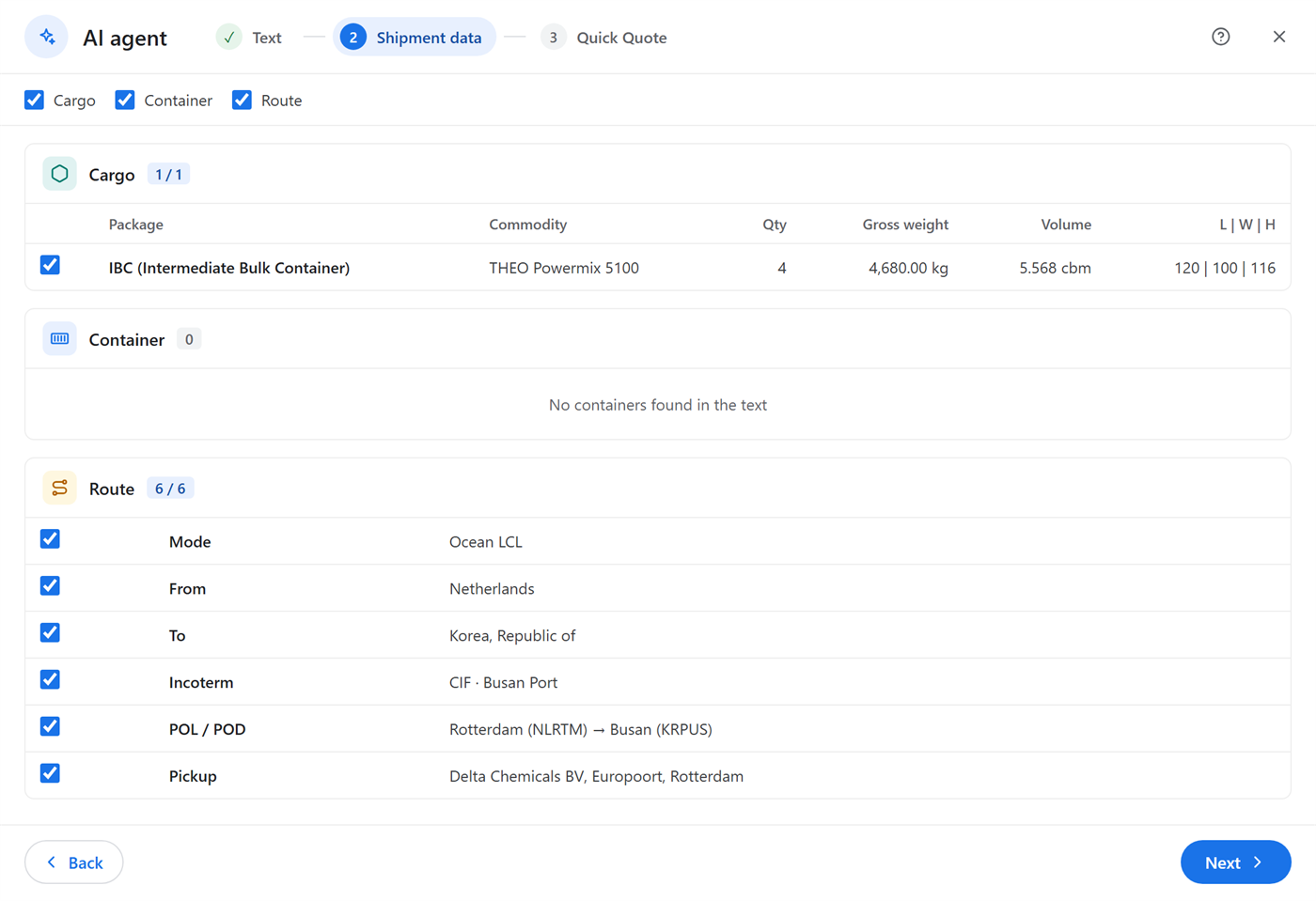
- Paste the e-mail or drop it from classic Outlook, or a saved .eml / .msg file. Up to five PDFs are read with it.
- It proposes the cargo lines, containers, pickup and delivery and the From / To. Untick what is wrong, then apply it to the order.
- Keep the commercial invoice or shipping instruction on the order with Save as, straight from the dropped PDF.
- Still waiting on the client? Tick it in the shipment status list and e-mail a checklist they can answer line by line.
A reply about this orderAI Email Agent
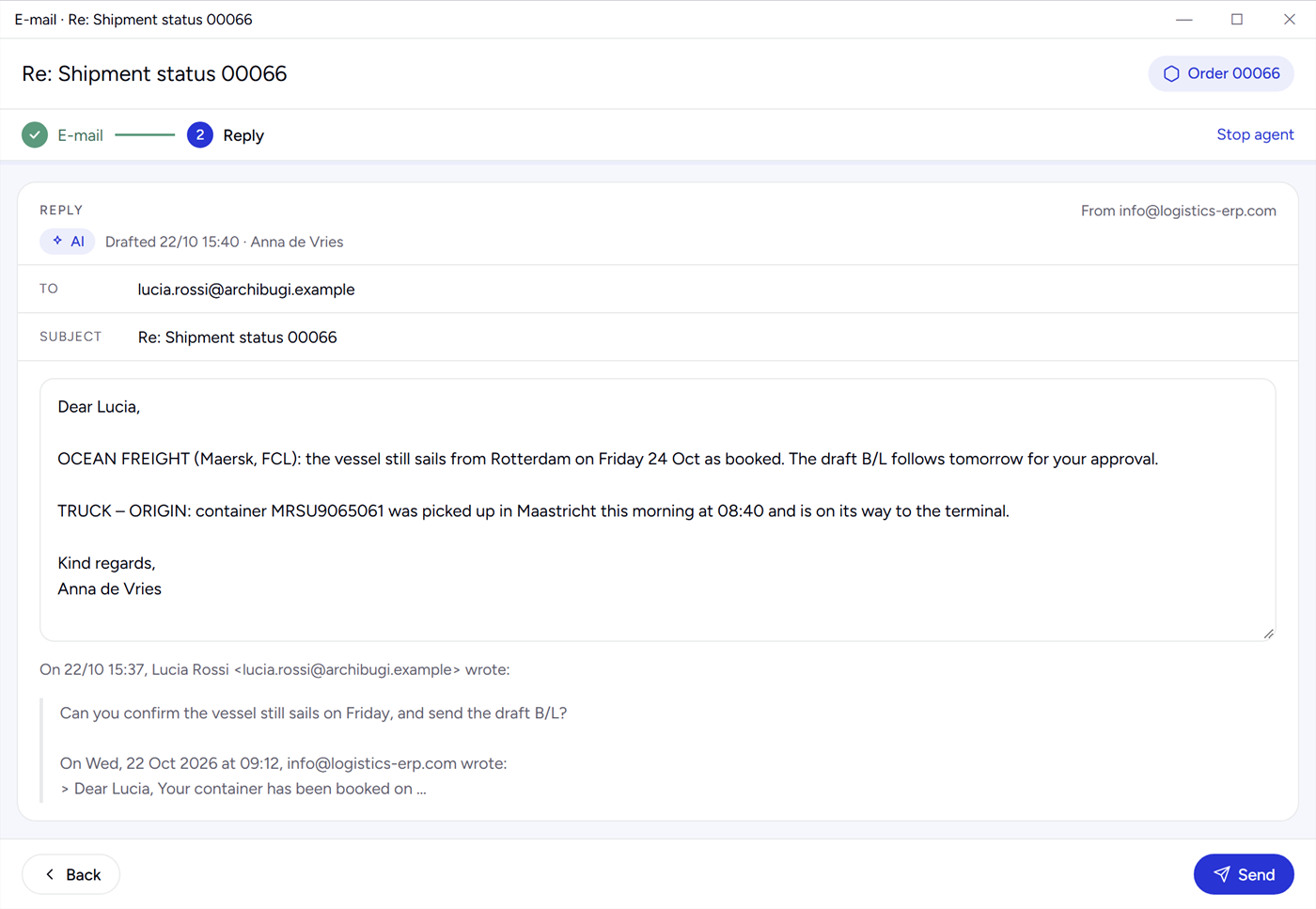
- Drop the client's e-mail on the order and choose what it is about: shipment request, offers, booking and payments, or service status.
- The reply is written from the order itself: the booked sailing, the handlings, the documents still to come.
- It goes out from your own mailbox, with the client's e-mail quoted under it.
- Your operator reads every reply before it is sent. Nothing leaves on its own.
ANY SOURCEE-mail, PDF or pasted text
An order form, a booking request in a PDF, a few lines in a chat. If it describes the shipment, the agent can read it.
CHECKEDA proposal, never a guess saved
Every line the agent found is ticked for you to confirm. Nothing reaches the order until you apply it.
ANY LANGUAGERead in theirs, reply in theirs
Requests in Italian, Korean or Dutch are read the same way, and the e-mail can be translated before it is sent.
AI CREDITSPay for what you use
The agents run on your company's AI Credits. The key stays on our server, never on a desktop.
02Shipping modes from rate templates
Ocean, LCL and Air for one request, in three clicks each
A rate template holds a lane the way you sell it: the carriers with their rate contracts, the terminals, trucking, customs, warehouse and insurance. Add it to the order and it becomes a priced quote.
Select shipping mode option templateOrder 00066 · Netherlands → Korea, Republic of
4 templates| Template no | Service mode | Container type | From | To |
|---|---|---|---|---|
| 0000100 | Ocean FCL | Dry | Netherlands | Korea, Republic of |
| 0000100 | Ocean FCL | Reefer | Netherlands | Korea, Republic of |
| 0000104 | Ocean LCL | — | Netherlands | Korea, Republic of |
| 0000108 | Air | — | Netherlands | Korea, Republic of |
Ocean FCL · Dry selectedUndoCreate
Shipment modes+ Add shipping mode · Lock prices
3 quotes| Quote no | Service mode | Container | Carriers | Description |
|---|---|---|---|---|
| 00330 | Ocean FCL | Dry | 3 | Weekly, via Rotterdam |
| 00331 | Ocean LCL | — | 1 | — |
| 00332 | Air | — | 2 | Express |
- 1
Add shipping mode
The ERP lists your rate templates between the order's From and To countries, one line per mode and, for FCL, per container type.
- 2
Pick the template, select Create
The quote gets its own number and a copy of every service of the template: carriers, terminals, local services, trucking, customs, warehouse and insurance. For FCL, only the carriers whose contract fits the container type.
- 3
Fine-tune the quote
The number of bills of lading, the terminals, extra trucking or customs, and which containers or cargo each carrier carries. Every carrier becomes an offer.
- 4
Lock prices once the offer is sent
Until then the quotes follow your rate contracts as they change. Lock prices freezes them, so the offer you sent is the offer you book.
ONE LANE, ALL CARRIERSNo carrier left out
Every carrier of the template is priced at once. Your operator compares, instead of opening rate sheets one by one.
DOOR TO DOORThe services come along
Pickup, delivery, export and import customs, warehouse and insurance are part of the quote, as the client asked on the order.
TRUCK · WAREHOUSE · CUSTOMSNot only freight orders
A trucking, warehouse or customs order adds a transport option the same way and follows the same road to booking and invoice.
03Instant offer pricing and booking
Every carrier priced side by side. The client's choice booked in one click.
The Offers tab works out one offer for every carrier of every quote: the freight plus everything at origin and destination the client asked for, in the currencies of the order.
Offers Origin Freight Destination · Total EUR · Freight USD · Origin EUR · Destination KRW
Report| No. | Carrier | Status | Gross price (ex. VAT) | P&L | T/T | Route |
|---|---|---|---|---|---|---|
| Quote 00330, Ocean FCL DryWeekly, via Rotterdam · 3 offers | ||||||
| 1 | MAMaersk | Preferable | 3,159.04 EUR | +430.40 | 32 days | NLRTM → KRPUS |
| 2 | MSMSC | Offer | 3,248.60 EUR | +398.10 | 35 days | NLRTM → KRPUS |
| 3 | CCCMA CGM | Option | 3,390.15 EUR | −40.00 | — | BEANR → KRPUS |
| Quote 00332, AirExpress · 2 offers | ||||||
| 4 | KEKorean Air Cargo | Offer | 6,940.00 EUR | +610.00 | 19 hr | AMS → ICN |
Drawn from the Offers tab. Unticking Origin, Freight or Destination prices the offers without that part at once. Options stay off the offer report.
Every charge behind the priceUnfolded offer
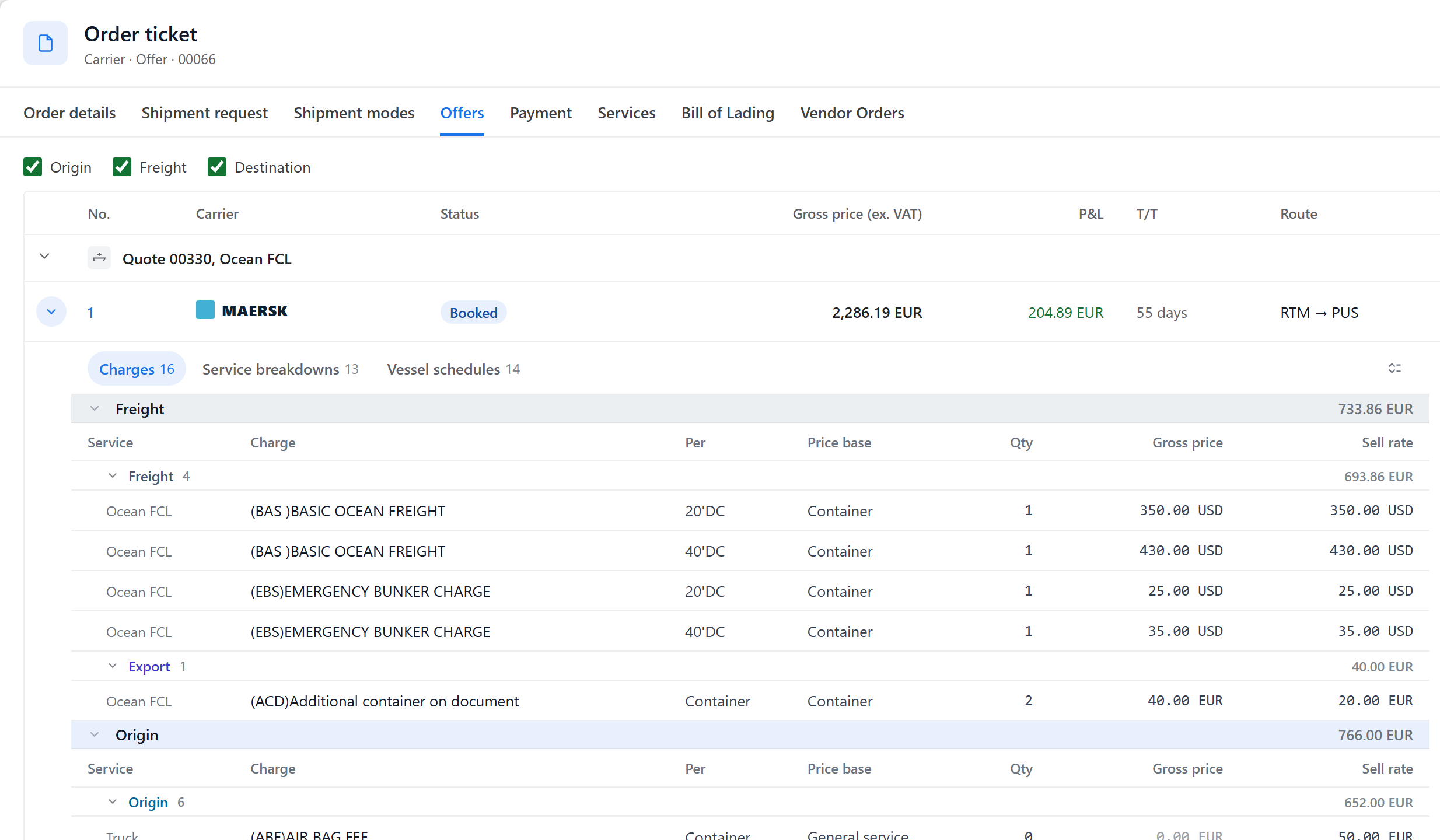
Charges in Freight, Origin and Destination bands with price base, quantity and sell rate. Service breakdowns and Vessel schedules sit next to them, so the sailing is chosen with the price.
Book the offer the client acceptedCreate booking
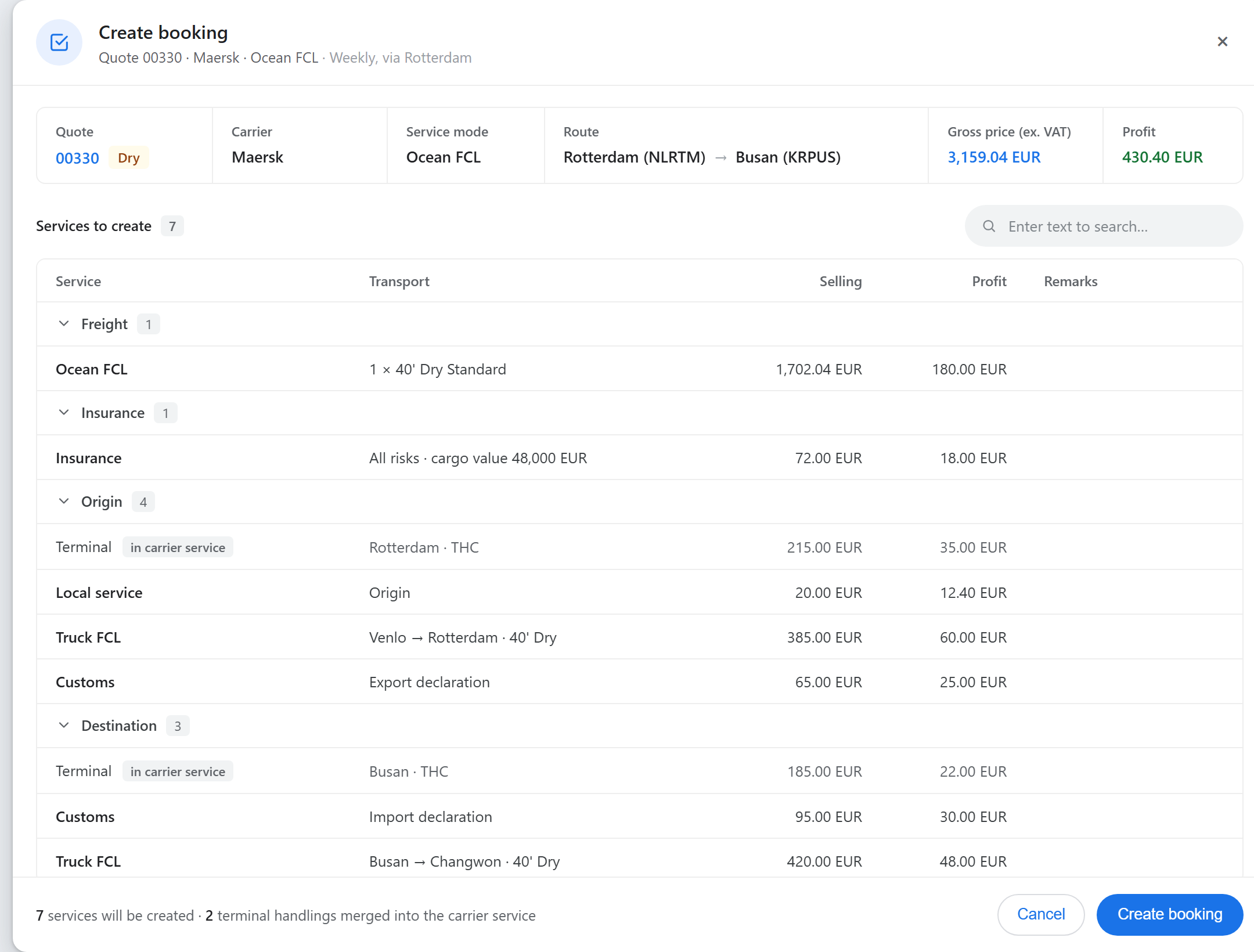
One click creates the services, with the vendor of each from its rate contract. A booked service is never priced again by itself: what you offered is what you invoice.
OFFER REPORTA PDF the client can choose from
Your heading, the shipment request, the offers per mode side by side with charges and schedules, valid until and your terms, e-mailed from the order.
PREFERABLE · OPTIONMark what you recommend
Right-click an offer to set it Preferable, Offer or Option. Options stay in the order but off the report.
ALL OR NOTHINGA booking is complete or not made
If one service cannot be created, nothing is booked and the reason is shown. No half-booked orders.
CLIENT PORTALOr let the client choose online
Clients on your Client Portal follow the same road: request, offers, booking, and the order's progress after it.
04Precise service handling
See what is urgent across every service, before the client does
After booking, the Services tab runs the shipment: every truck stop, terminal, customs entry, warehouse handling and carrier check, each with a planned date, a status and a person who knows what comes next.
All services of the orderServices · List
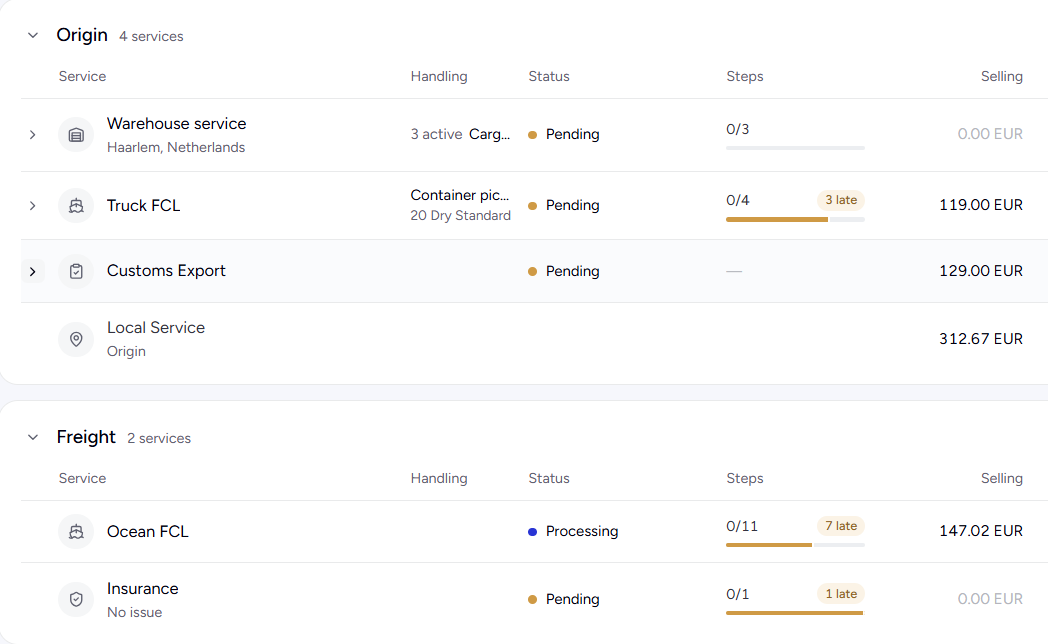
Grouped into origin, freight and destination, with the status, the steps done and how many are late, the selling price and whether it is invoiced.
Follow-up: every handling in one listNeeds attention
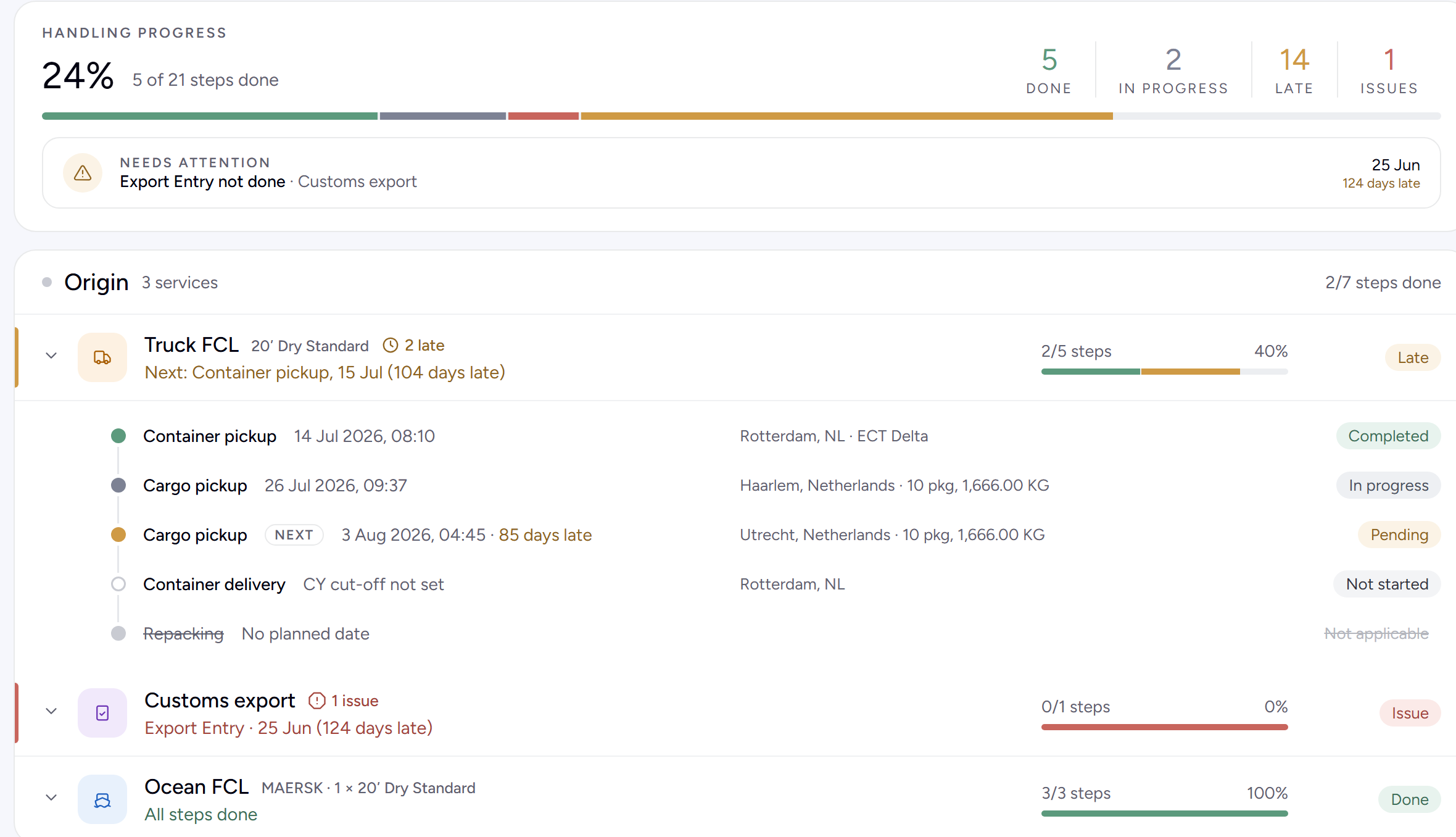
Handling progress with Done, In progress, Late and Issues, the most urgent action on top, and the next step of each service. Mark done, postpone or add a remark from the same row.
Timeline
Every handling of every service on one time line
The same Follow-up as a timeline: origin, freight and destination services on one axis with today marked, so you see at a glance what is late, what is due this week and which dates are still waiting for a cut-off.
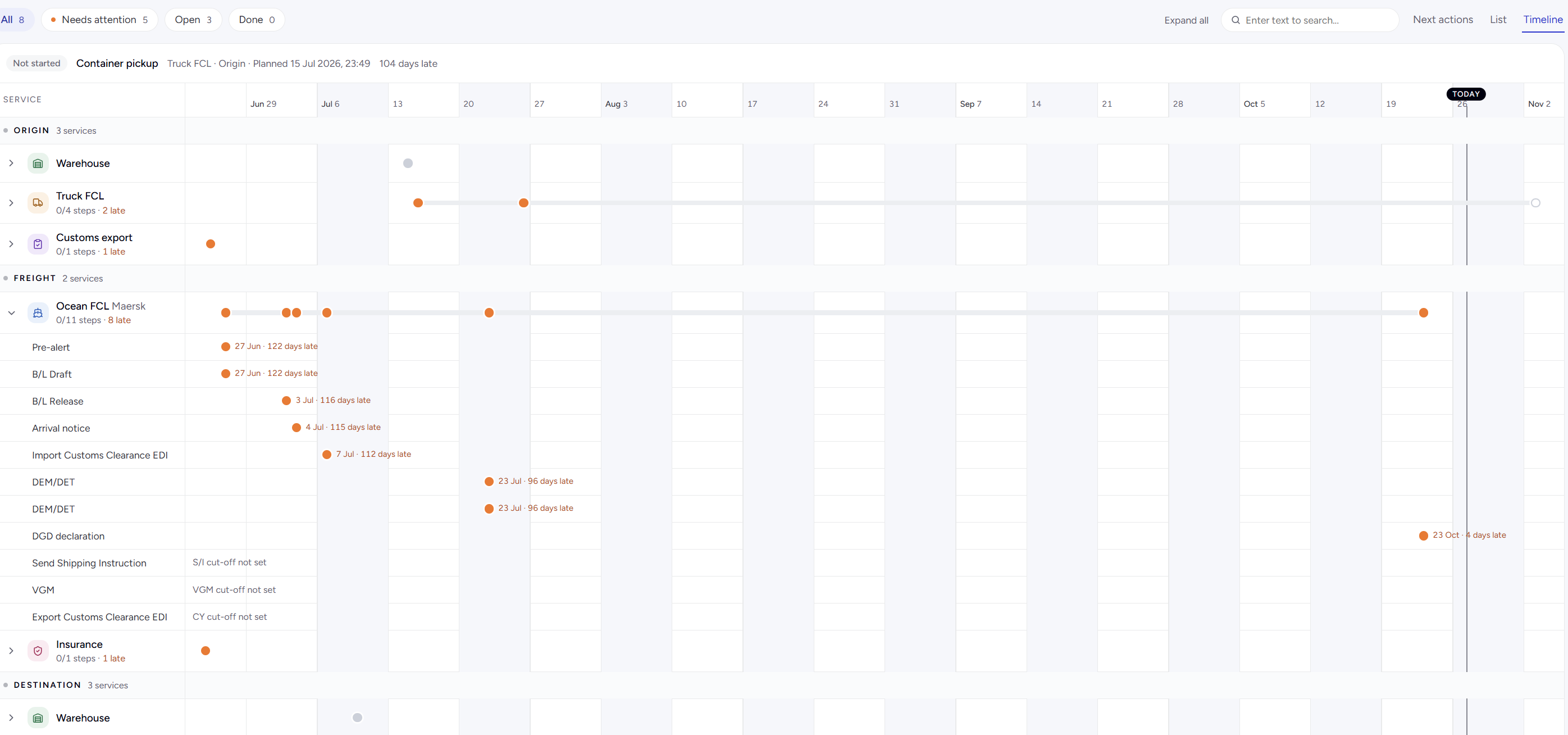
FILTERSFilter to what matters
Show only the handlings that need attention, the open ones or the finished ones, across every service of the order.
NEXT ACTIONS · LIST · TIMELINEThree views, one set of dates
Work the next actions, check the list, or see the order in time. Every view reads the same planned and actual times.
UNFOLD A SERVICEEvery check of the carrier
Pre-alert, B/L draft and release, arrival notice, customs EDI, DEM/DET and DGD, each at its own date and how late it is.
CUT-OFF NOT SETMissing dates are visible
A handling whose anchor has no date yet says so, such as "S/I cut-off not set", so nobody assumes it is planned.
Timing rules
Your deadlines, per handling type, counted from the real schedule
Container pickup four days before the CY cut-off. Export entry twelve hours before departure. Arrival notice on arrival. Set it once for your company; every booked order takes a copy you can change for that order alone.
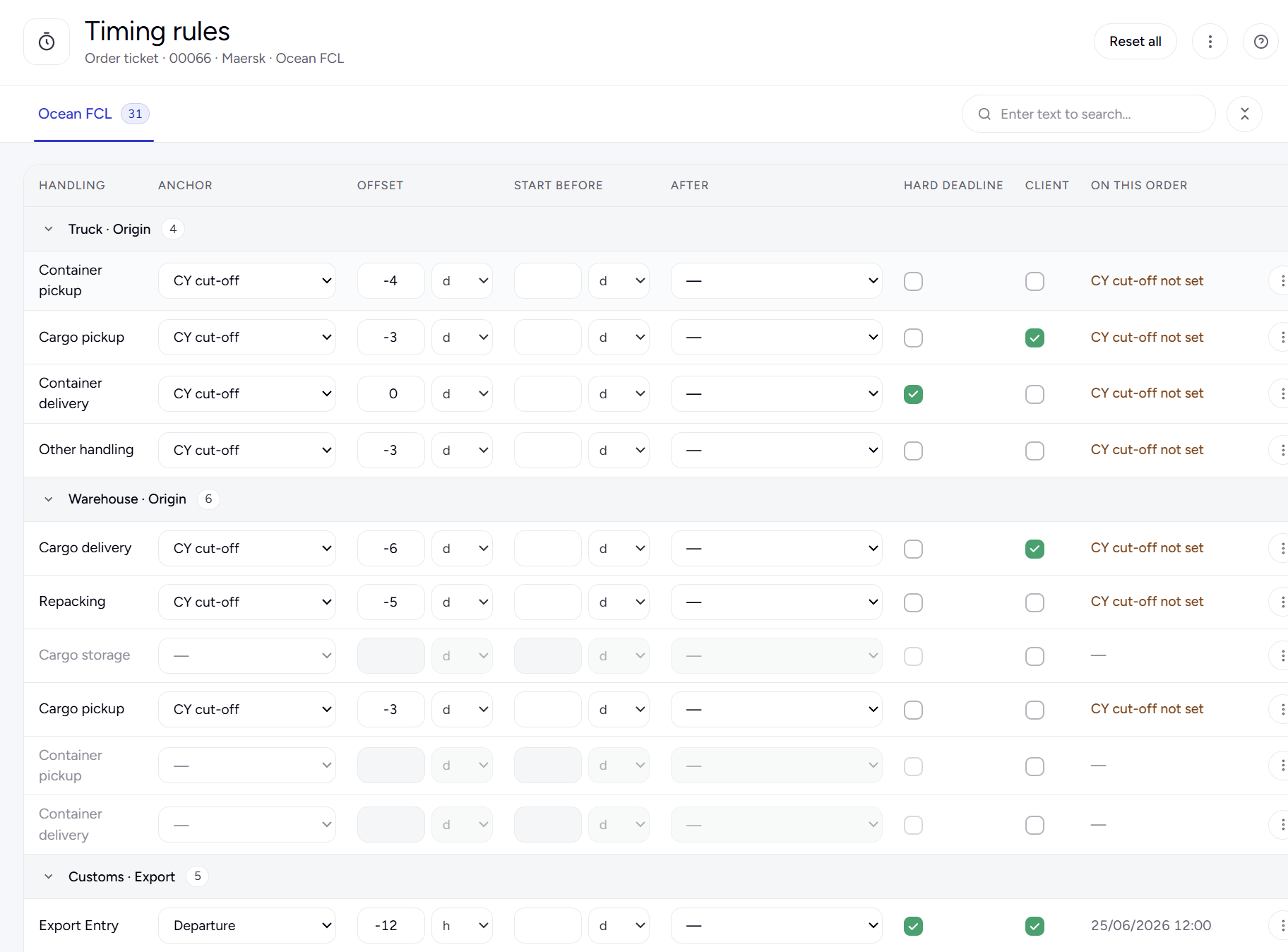
ANCHORCounted from the schedule
CY or cargo cut-off, documentation, S/I, VGM and DGD cut-offs, departure, transshipment or arrival. Departure and arrival use the actual time once the carrier reports it.
OFFSET · START BEFOREWhen it is due, when to begin
Days or hours before or after the anchor, and how long before the due date the handling should start.
AFTEROne handling waits for another
The container goes to the terminal only after it was picked up, and the plan follows when the first one moves.
HARD DEADLINE · CLIENTWhat cannot slip, what the client sees
Mark the dates that cannot move, and choose which handlings appear in the client's status report.
E-mail reports
Keep the client informed, without writing the e-mail
One click sends the status of the whole order, one service or one handling, with your logo, from your own mailbox. Auto status sends it on a schedule, or only when something changed.
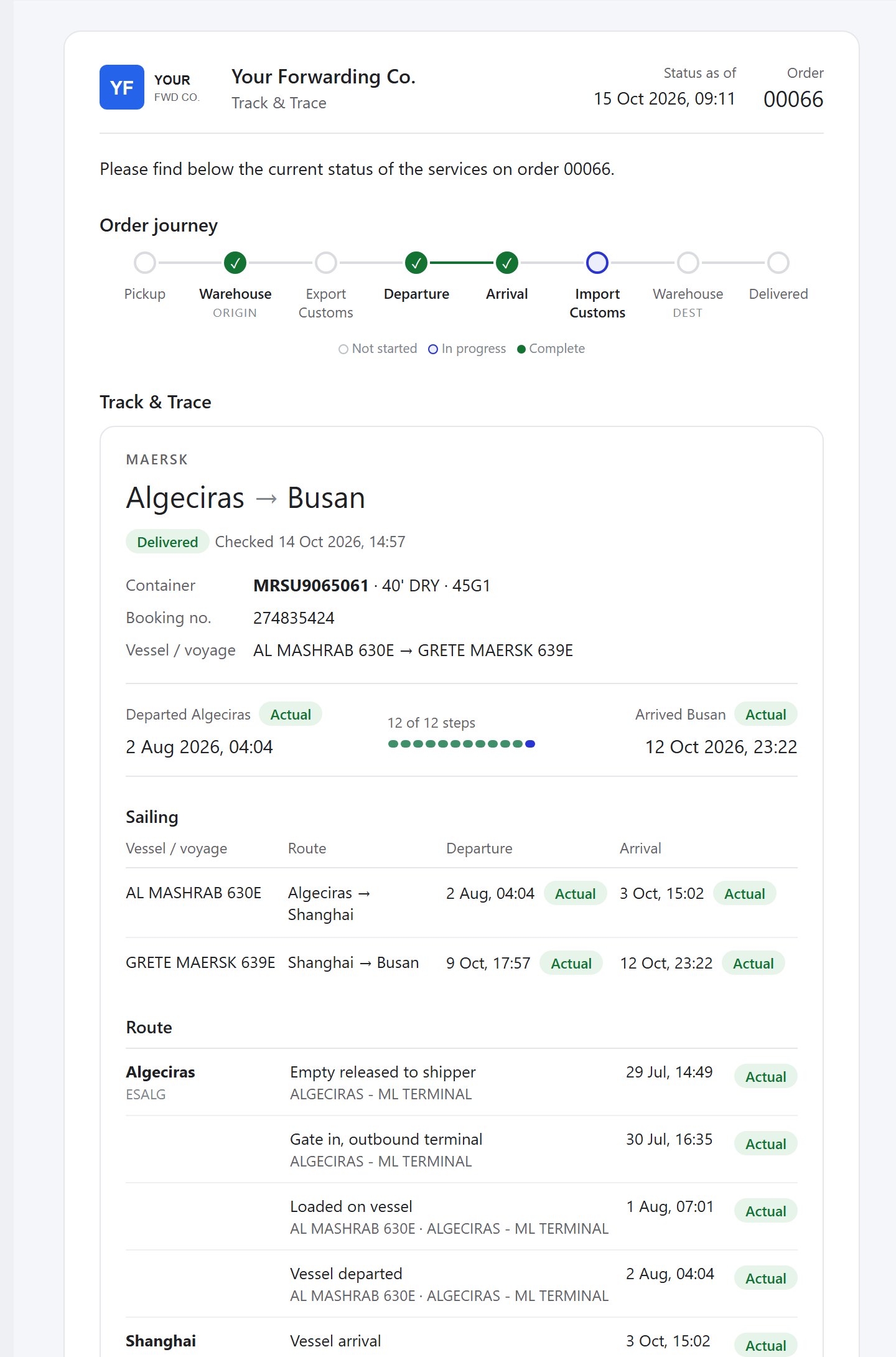
- Services status — the whole order: where the shipment is now, the journey, the carrier's Track & Trace and every service with its handlings.
- Service status — one truck, customs, warehouse or carrier service, from its window or a right-click in the list.
- Handling status — one handling, planned, confirmed and completed, straight from Follow-up.
- Offer, shipment request and payment reports — as a PDF with the e-mail, each from the tab it belongs to.
- Auto status checks the carrier every one or two hours and e-mails the client at set times, or on every change.
- The AI Email Agent answers a client's question about a service — "has the container been picked up?", "is the export entry done?" — with a reply written from the order's own handlings, ready for your operator to check and send.
B/LBills of lading
House, sub master or carrier master. Original or released. On the carrier service.
The bills of lading belong to the booked carrier service. A House B/L is typed in a window laid out like the printed bill, with almost every box already filled in from the order. The carrier's master is kept as its PDF next to it.
The House B/L windowHouse B/L · Draft
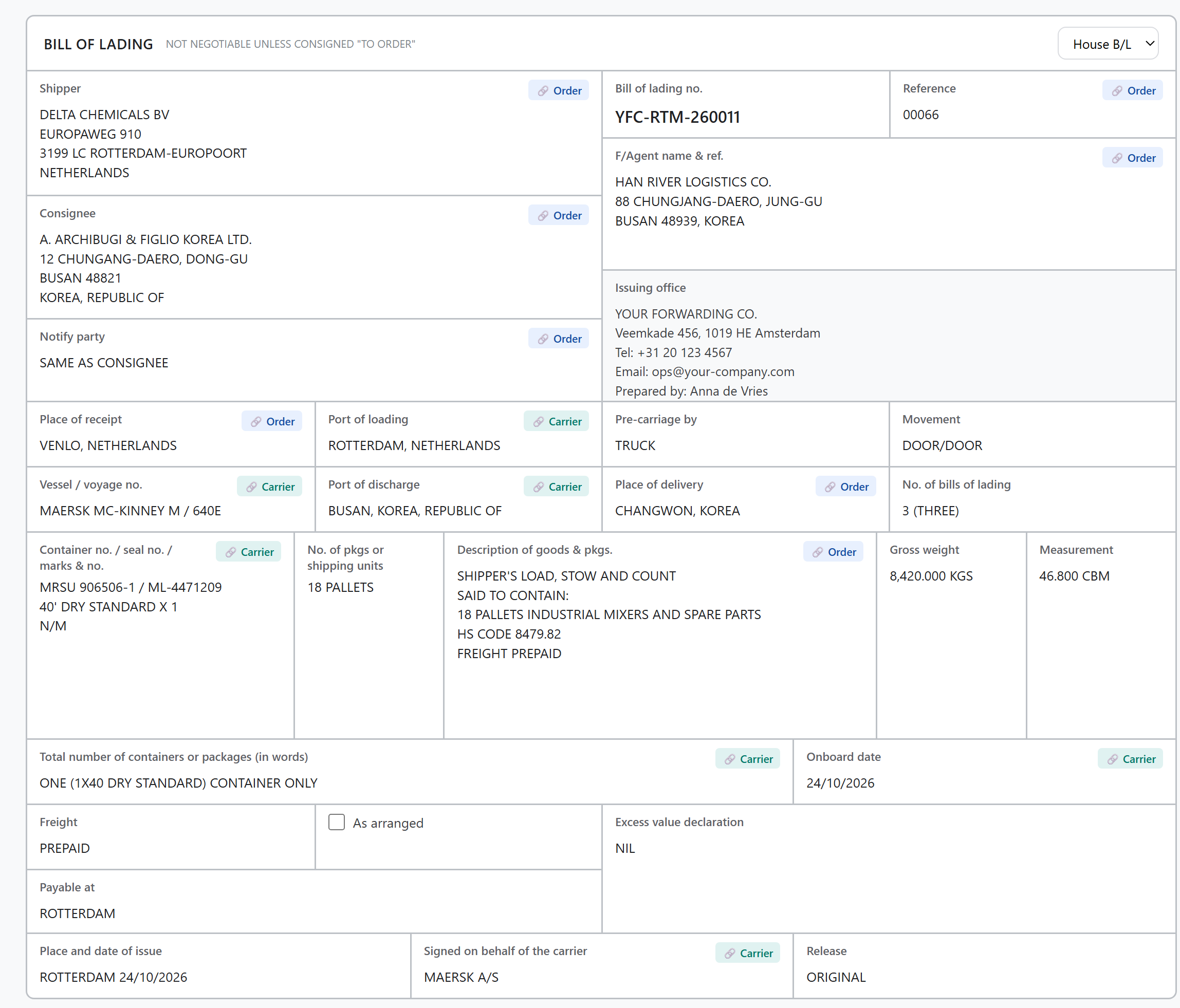
- Filled in for you — parties from the shipping instruction, places, cargo and freight term from the order; ports, vessel, containers, weights, on-board date and carrier from the carrier service.
- Every box shows its source — Order, Carrier or Manual. When the order changes later, the box says Order changed; nothing is overwritten by itself.
- Sync › From order lists the boxes that differ and lets you take them over in one go. Boxes you typed yourself start unticked.
- Your own B/L numbers from a series per B/L type and mode, such as Ocean FCL export, set in Settings › Numbering. Or type the number yourself.
- Draft, Final, Cancelled — a draft for the client to approve; Final needs the B/L number. Shipper, consignee and both ports are always required.
Bill of ladingCarrier service · Maersk · Ocean FCL · MAERSK MC-KINNEY M / 640E
Add B/L PDF+ Create House B/L| No. | Type | B/L status | Shipper / Consignee | Updated |
|---|---|---|---|---|
| Bills of lading2 | ||||
| YFC-RTM-260011 | House B/L | Draft | Delta Chemicals BV / A. Archibugi & Figlio Korea | 23/10/26 16:42 |
| MAEU233098771 | FCL Master B/L PDF | Final | Your Forwarding Co. / Han River Logistics Co. | 24/10/26 11:05 |
| Shipping instructions1 | ||||
| SI-RTM-26-0411 | Shipping instructions | Final | Delta Chemicals BV / A. Archibugi & Figlio Korea | 21/10/26 09:18 |
Drawn from the carrier service's Bill of lading card. The same list is on the B/L Draft and B/L Release checks of the carrier service.
Every B/L scenario
One window for the bills you issue, one place for the bills you receive
How many house and master bills a shipment needs is set on the quote. Each one then follows the same road: shipping instruction, draft, release.
HOUSE B/LThe bill you issue to your client
Typed in the B/L window, filled in from the order and the carrier service, numbered from your House B/L series for the order's mode.
FCL SUB MASTER B/LA master you issue yourself
The same window, boxes and checks as the House B/L, with its own B/L type and its own number series.
FCL · LCL MASTER B/LThe carrier's bill, kept as its PDF
Add B/L PDF stores the carrier's master with its number, status and parties. It keeps the carrier's number; your series never touches it.
ORIGINALOriginals, and how many
Release Original with the number of originals, 0 to 5, printed as words, such as 3 (THREE).
EXPRESS RELEASE · SURRENDEREDCargo released without originals
Choose Express release, or Surrendered when the originals were handed back at origin. Copy marks a non-negotiable copy.
PREPAID · COLLECTFreight terms and where to pay
Freight Prepaid or Collect, Payable at, As arranged, and the excess value declaration, on the bill as the client agreed.
CY · CFS · DOOREvery movement
CY/CY, CY/DOOR, DOOR/CY, DOOR/DOOR, CFS/CFS, CFS/CY or CY/CFS, for full containers and consolidated cargo alike.
DRAFT · FINAL · CANCELLEDApprove before you release
Agree the draft with the client, make it Final once approved. A cancelled B/L stays on record, out of the way.
On the carrier service
The steps around a bill of lading are checks of the carrier service, each with a status, planned and actual times and remarks. Their planned dates come from your timing rules, so a late draft shows up in Follow-up like any other handling.
- 1
Shipping instructions
Kept on the order's shipment request. The AI agent can save one straight from a dropped PDF.
- 2
B/L Draft
Create the House B/L from the order, check the boxes and agree the draft with the client.
- 3
B/L Release
Make it Final with the release type, and add the carrier's master as its PDF.
05Payment
Invoices in as many parts as the job needs. Nothing forgotten.
The Payment tab holds every charge of the booked services. Tick the charges for an invoice, and the balance tells you what is still open, what changed after invoicing and what has been paid.
Charges and the balancePayment · Charges
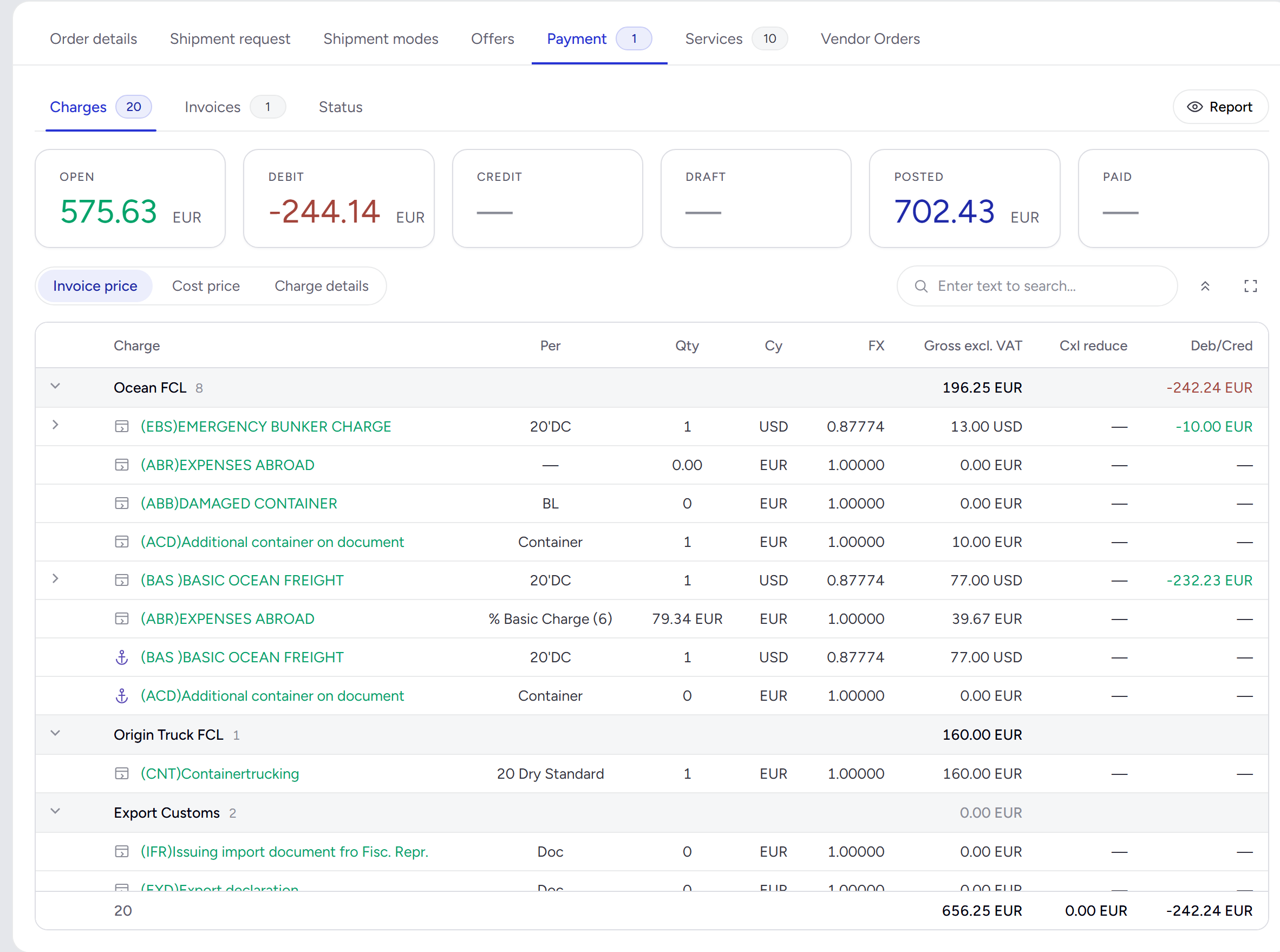
Each charge in its own currency with the exchange rate, grouped per service. Open is not invoiced yet; Credit and Debit show what changed after an invoice was posted.
The order's result at a glancePayment · Status
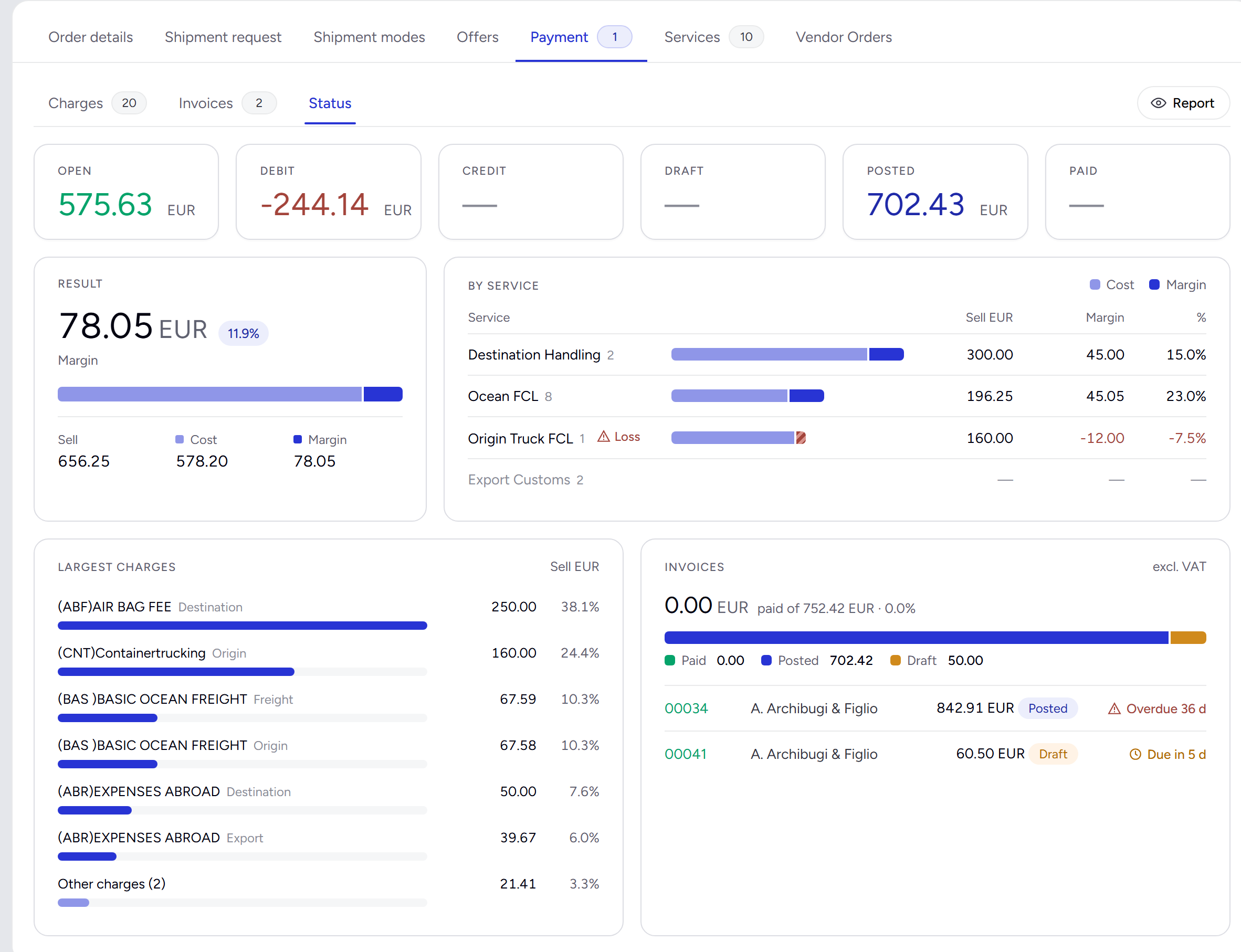
Margin per service, with a loss flagged where cost passed the selling price, the largest charges, and every invoice with its due date. Overdue invoices stand out.
Select chargesNew invoice · Draft · A. Archibugi & Figlio
2 to add| Current selected charges2 | ||
| (THD) Terminal handling dest. | 185.00 EUR | |
| (IMD) Import declaration | 95.00 EUR | |
| Not yet invoiced3 | ||
| (DEL) Delivery trucking Busan | 420.00 EUR | |
| (INS) Cargo insurance | 72.00 EUR | |
| (ABR) Expenses abroad | 50.00 EUR | |
| Invoice 00034 · Postedfreight and origin | ||
| (BAS) Basic ocean freight · 40' Dry | 1,702.04 EUR | |
2 to add · 0 to removeUndoApply
- 1
New invoice, tick the charges
Freight now, destination charges when they are known. What you leave stays under Not yet invoiced for the next invoice; a charge fully on a posted invoice is locked.
- 2
Check the ticket, Create & Post
Client and vendor, invoice currency, VAT code, payment term and your references. The number comes from your own number series.
- 3
Correct without starting over
A charge went up after posting: the new invoice carries only the difference. Too much invoiced: Duplicate as credit note.
- 4
Keep the purchase side with it
Add the carrier's or the trucker's invoice as a PDF or Word file, and put posted invoices on a payment schedule in the SOA.
Forwarder Alliance · shared orders
One order, two offices. Your overseas partner works on the same ticket.
Name your partner as forwarding agent at origin or destination, and the order is shared: it appears in their own Order list and they work in it with you. Peer to peer, with the partners you already trust.
PartiesOrder 00066 · Netherlands → Korea, Republic of
Shared · 1ClientA. Archibugi & Figlio, Italy
F/Agent originYour Forwarding Co., Rotterdam
F/Agent destinationHan River Logistics Co., BusanPartner · sees this order
Busan added the consignee and delivery address. Rotterdam sees it at once.
- Each side fills in its half of the shipment request: shipper and pickup at origin, consignee, delivery and import details at destination.
- Your partner's price is your buy price. Destination charges come from their rate template; your margin and your client discount stay yours.
- Every update is seen on both sides the moment it is made, documents included, across time zones. No pre-alert threads, no "any news?".
- You stay in charge of your order. Per quote you decide what the partner sees; the client and the agents stay yours, and so do Auto status and vendor orders.
- No integration project. A partner needs one active user to join. Each side keeps its own clients, rates and margins.
For one Rotterdam–Busan order: request, modes, prices, booking, departure and delivery, each a thread across time zones.
Each question across the time zones waits for the next working day in the other office.
Every step is on the ticket the moment it is recorded, for both forwarders. The worked example is on the Forwarder Alliance page.
By hand, or on one order
The same job, without the copy and paste
What each step of a door-to-door shipment takes with a mailbox and spreadsheets, and with the order flow of Logistics ERP.
| Step | By hand | With Logistics ERP |
|---|---|---|
| Shipment request | Retype cargo, sizes and addresses from the e-mail and its PDFs | The AI agent proposes the lines, you check and apply |
| Shipping modes | One rate sheet per mode and carrier, totals in a spreadsheet | One rate template per mode, every carrier and service priced |
| Offers | Build the comparison, then write the offer e-mail | Side-by-side offers with profit and transit time, report in one click |
| Booking | Re-enter the chosen offer in the operations list | Create booking makes every service with the offer's prices |
| Following services | Deadlines in the operator's head or calendar | Timing rules give every handling a date; late ones come first |
| Bills of lading | Retype parties, ports, containers and weights into a B/L template | The House B/L fills in from the order and the carrier service, numbered from your series |
| Informing the client | A status e-mail when the client asks | Status reports in one click, or Auto status on schedule and on change |
| Overseas partner | Pre-alerts, rate sheets and "any news?" e-mails across time zones | One shared order; every update live in both offices |
| Invoicing | Collect the charges again for accounting, and miss one | Invoices from the booked charges, in parts; Open shows what is left |
Every mode offered, every service on time. One order instead of scattered e‑mails.
Offers in every mode from your own rate templates, each service handled on your timing rules, the client updated before they ask, and invoices made from the booked charges. All on one order that your team, your client and your overseas partner can rely on.